Top Free Photo Editing Software for macOS
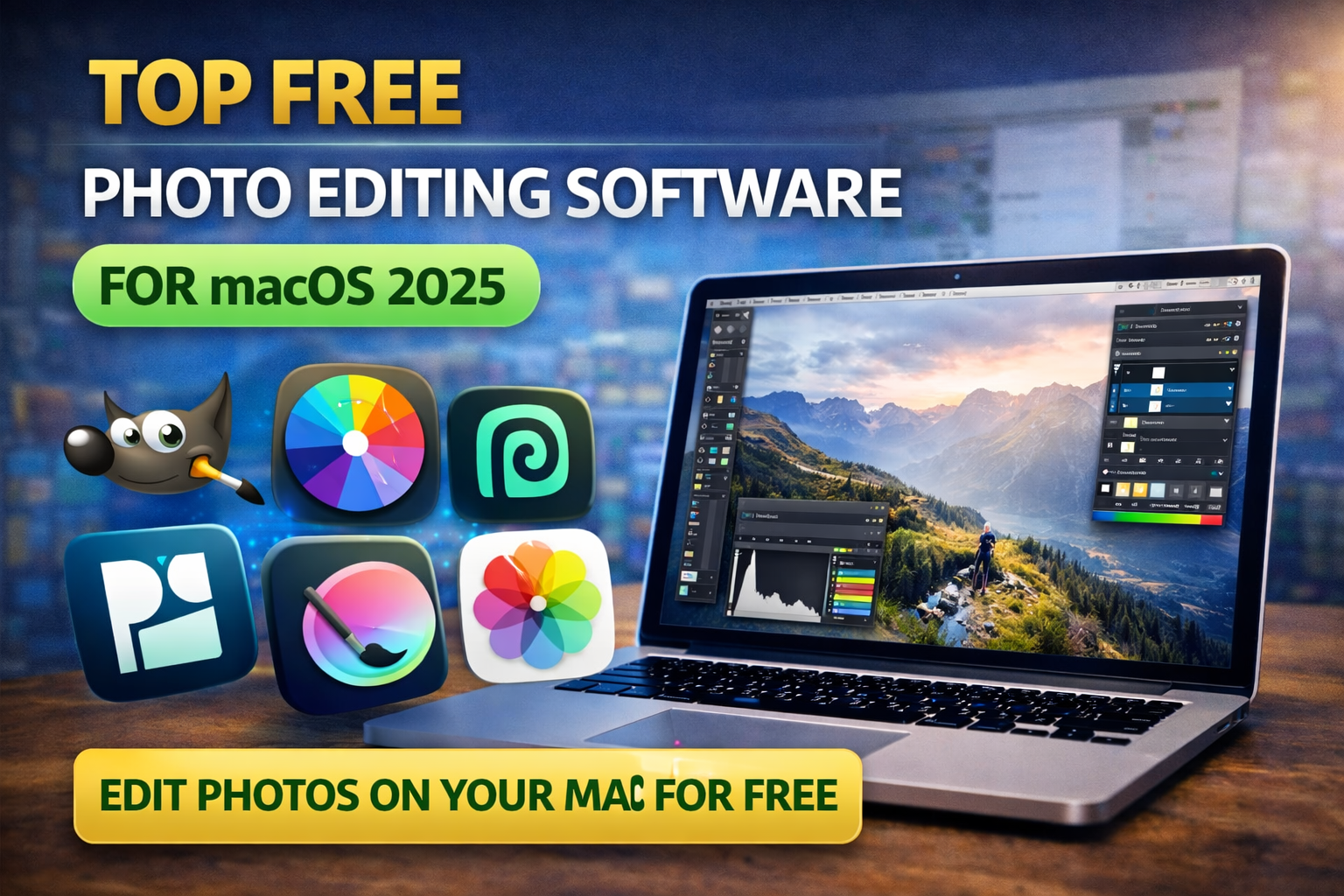
Whether you’re editing photos for school projects, social media, personal creative work, or professional tasks, having the right photo editing software on your Mac matters. The good news? You don’t have to spend money to get powerful tools. In 2025, many free photo editors on macOS offer features that rival paid software.
This guide covers the best free photo editing software for macOS — tools that run smoothly on Apple silicon and Intel Macs, are genuinely free to use, and are practical for everyday users.
1. GIMP — Free and Fully Featured Photo Editor
Best For: Advanced editing, detailed photo work
GIMP (GNU Image Manipulation Program) is one of the most powerful free photo editors available on macOS. It offers many tools that serious editors need.
Key features:
-
Layers and masks
-
Advanced color correction
-
Selection tools
-
Support for plugins and extensions
GIMP’s interface might feel complex at first, but once you learn the basics, it’s capable of professional-level edits — from enhancing photos to creating graphics.
2. Darktable — Photo Workflow + Editing
Best For: Photographers and batch editing tasks
Darktable focuses on photo editing with a workflow similar to paid software used for photography. It excels for users who work with large photo libraries or RAW files.
Highlights:
-
Non-destructive editing
-
Advanced color and tone tools
-
Adjustable presets
-
RAW image support
Darktable is ideal if you shoot in RAW and want an organized way to edit many photos with precise control.
3. Photopea — Browser-Based Photoshop Alternative
Best For: Quick edits without installing software
Photopea runs directly in your web browser — no download required. It looks and works very much like familiar paid tools, making it easy to jump into editing right away.
Features:
-
Layer editing
-
Masking and selection tools
-
Works with PSD and common image formats
-
No install needed
Photopea is perfect for students and casual editors who want Photoshop-like features without buying software.
4. Krita — Great for Digital Painting and Illustration
Best For: Artists, illustrators, creative drawing
Krita is focused on painting and creative artwork. While it supports photo editing, its real strength is digital art.
Why students and creatives like Krita:
-
Professional drawing brushes
-
Layer management
-
Intuitive painting tools
-
Continuous updates
If your edits involve illustration or art creation alongside photo work, Krita is a strong choice.
5. Pixelmator Classic (Limited Free Features)
Best For: Users who want a simpler, native macOS experience
Pixelmator Classic offers some free tools with an intuitive macOS-style interface. While its full version requires payment, the available free features are still useful for basic photo tasks.
Good for:
-
Simple photo fixes
-
Cropping and adjustments
-
Quick color tweaks
This option works well if you want something that feels native to macOS and easy to use.
6. Apple Photos — Built-In and Familiar
Best For: Everyday photo management and simple edits
Don’t overlook the built-in Apple Photos app on macOS. It’s free and often underrated for editing tasks.
Useful tools include:
-
Auto-enhance
-
Crop and rotate
-
Color adjustments
-
Filters
For many users, Apple Photos has enough editing tools for everyday image improvements without installing anything else.
How to Choose the Right Editor
Here’s a quick comparison to help you decide:
| Software | Best For | Strength |
|---|---|---|
| GIMP | Advanced editing | Full suite of image tools |
| Darktable | Photographers | Non-destructive workflow |
| Photopea | No install | Browser access + PSD support |
| Krita | Digital art | Brushes and illustration |
| Pixelmator Classic | Simple edits | User-friendly macOS feel |
| Apple Photos | Everyday tweaks | Built-in, immediately available |
Tips for Free Photo Editing on macOS
-
Use RAW when possible for better quality editing. Darktable and Photopea both support RAW files.
-
Learn basic keyboard shortcuts to speed editing.
-
Back up originals before major changes — this keeps your source images safe.


No comments yet. Be the first to comment!